Product photography that fits your WooCommerce grid.
Build a consistent WooCommerce catalog from the phone photos you already have. Use a 2000 x 2000 square JPEG or a 1600 x 2000 portrait JPEG to match your theme, then add gallery scenes, a callout infographic and product copy from the same listing pack.
2000 x 2000 pixels · 1:1 · 4:5 · 9:16 · listing copy included
Try a sample photo


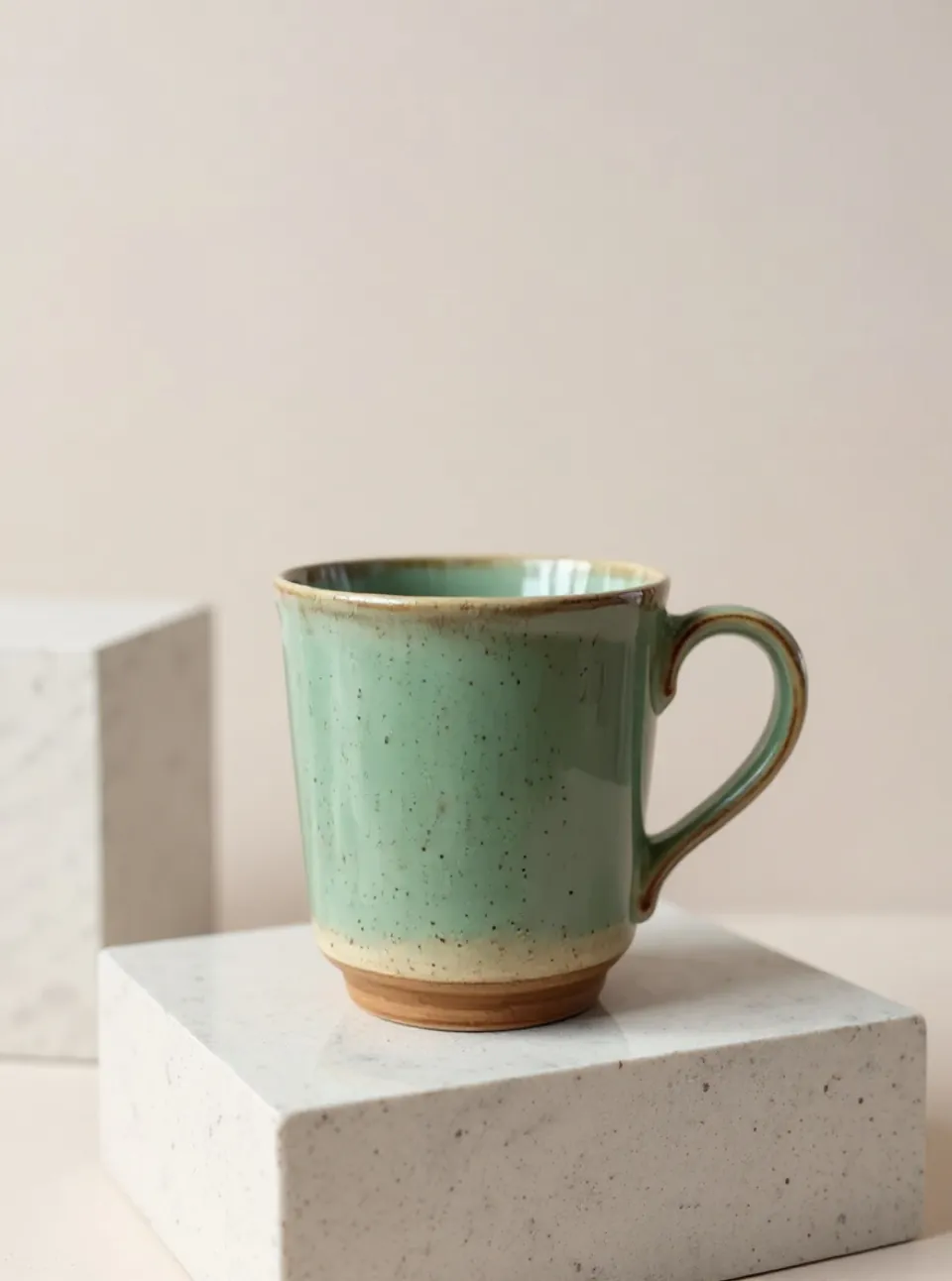
Before: Sample phone photo made for this page. After: unedited Viszy results from the same upload.
WooCommerce specifications
Exact WooCommerce image, video & copy rules
There’s no universal WooCommerce product image size: the theme and catalog crop control what shoppers see. Pick the matching canvas before uploading to WordPress so the featured image is easy to recognise in both the grid and the product gallery.
| Specification | WooCommerce requirement | Viszy export |
|---|---|---|
| Square catalog grid | Use 1:1 when the theme crops thumbnails square. | 2000 x 2000 JPEG from the Square export. |
| Portrait catalog grid | Use 4:5 when your theme or custom crop is configured for it. | 1600 x 2000 JPEG from the Portrait export. |
| Product page detail | Check that the main image is sharp in the product gallery and when opened at full size. | Start with a sharp source photo and export the whole item without cropping it. |
| Image file weight | Use a compressed format and judge page weight on a real mobile connection. | Standard JPEG downloads; review file weight in WordPress and optimise further if your theme needs it. |
| Featured and gallery images | Pick a featured image for the grid; add separate images to the product gallery. | A white main image, lifestyle and studio scenes, plus a callout infographic. |
| Search and product copy | Use an accurate product title, short description and descriptive image alt text. Set search metadata in your SEO plugin if you use one. | Draft a title, selling points and a short search description using the Studio’s Shopify copy preset, then paste and adapt the copy in WooCommerce. |
The WooCommerce download is 2000 x 2000 pixels, with your product fitted whole on white and never cropped. Every plan, free included, has the size pack.
Phone photo to published listing
From one phone photo to a complete WooCommerce listing pack
Check the crop in your active theme first. Build a featured image and gallery around that same shape so buyers can scan the shop and still see the whole product.
01
Photograph the whole item
Use soft window light and a plain surface. Keep the edges and any printed label sharp in the original photo.
Output · One clear starting photo for the featured image and gallery.
02
Make the featured shot and gallery
Create a listing pack with a clean main photo, product scenes and a callout graphic. Keep the main shot free of title and promo text.
Output · A readable catalog image and separate gallery assets with distinct jobs.
03
Download the canvas your theme uses
Pick Square (2000 x 2000) for a 1:1 grid or Portrait (1600 x 2000) for a 4:5 grid. Reuse the same aspect ratio across the collection.
Output · A matching set of JPEGs ready for the WordPress Media Library.
04
Upload and add your copy
Set the featured Product image, add the gallery files and paste the title and selling points. Add accurate alt text and preview the shop and product pages on mobile.
Output · A WooCommerce product page with consistent photos and usable copy.
Green ceramic mug – Glazed ceramic, Rounded handle, Green finish
- Glazed ceramic
- Rounded handle
- Green finish
Meta description: Green ceramic mug: Glazed ceramic. Rounded handle. Green finish.
Gallery architecture
Recommended WooCommerce gallery slot plan
Let the featured image earn the click. Use the gallery to answer questions about scale, finish, dimensions and what comes in the box.
Featured
Catalog thumbnail
White background · Square or Portrait
Use the ratio chosen for the whole grid and leave room around the silhouette.
Gallery 01
Scale in context
Lifestyle scene
Place the product in a familiar setting so shoppers can judge scale.
Gallery 02
Finish and material
Studio product shot
Use even light to show glaze, fabric or packaging texture.
Gallery 03
Important details
Callout infographic
Add your actual dimensions or materials in type that stays readable on a phone.
Gallery 04
Back or side
Additional product photo
Use a real second angle for details that cannot be seen from the front.
Gallery 05
What’s included
Flat lay
Show the actual box contents and included accessories together.
Pre-publish verification
What to aim for on WooCommerce — and mistakes to avoid
Preview both the catalog grid and the full product page before publishing.
Before you publish
WooCommerce listing checklist
- Match the featured image crop to your active theme’s grid.
- Keep the entire product in frame and check the thumbnail at phone width.
- Compare colours and printed packaging with the item you will ship.
- Check that the gallery opens at useful resolution without delaying the page.
- Use short, descriptive file names and write alt text for each distinct image.
- Place promo text and feature callouts in the gallery, not on the featured thumbnail.
Core platform rules
- WooCommerce recommends uploading images at least 800 x 800 pixels for use as product, catalog and thumbnail images.
- Match your theme’s catalog crop. Use 1:1 for a square grid or 4:5 if you’ve set up a taller grid.
- Choose the same aspect ratio and similar framing for every featured product image in a collection.
- Use a crisp, reasonably sized JPEG and check the catalog on mobile after uploading.
Avoid rejections & reshoots
Common WooCommerce photo mistakes
- Mixing square and tall featured shots
- Choose one ratio for the catalog and use it across each product’s featured shot.
- Framing to the edge before upload
- Leave a little breathing room and check the theme’s actual thumbnail crop.
- Uploading the largest file from the camera
- Use the sized JPEG first. Compare sharpness and loading on a phone before making it smaller.
- Reusing the title as every image’s alt text
- Describe the view or visible detail each image contributes.
Simple credits · no lock-in
Pay per WooCommerce listing pack, or buy credits once
Try a product photo free. Buy the Launch Pack once for up to 12 complete listing packs, or use part of the same balance for promo clips. Paid downloads are watermark-free and include a commercial licence.
1 credit = 1 image · a listing pack = 4 credits · a 5‑second clip = 20 credits · a voiceover = 1 credit
One-off · no subscription
Launching 1–3 products? Buy credits once.
Watermark-free with a commercial licence. Pack credits stay on your account until you use them.
Questions
WooCommerce seller FAQ
- What is the best WooCommerce product image size?
- WooCommerce recommends uploading at least 800 x 800 pixels. Start with Viszy’s 2000 x 2000 square JPEG for a 1:1 grid, or use 1600 x 2000 for a store configured around 4:5. Preview the actual theme crop before uploading the rest of your catalog.
- How do I make WooCommerce product images the same size?
- Use the same export aspect ratio and similar framing for each featured image. Then set a matching thumbnail crop if your theme offers that control.
- Where do I put the main image and the gallery?
- Upload the main JPEG as the Product image in your WooCommerce editor. Add the remaining images under Product gallery and order them as shoppers should see them.
- Can I reduce the file size without losing detail?
- Start with a sharp photo and use the sized JPEG instead of the camera original. Compare the image in the catalog and full gallery before applying additional compression.
- Does the pack give me copy for WooCommerce?
- You can use the Shopify copy preset as a starting point for the search title, short description and selling points. Copy them into your WooCommerce editor and set the search fields in your SEO plugin if you use one.
- Can I reuse the photos on other marketplaces?
- Yes. Open the same finished photo and download the dedicated size for Shopify, Amazon, Etsy, TikTok Shop or eBay. Check each marketplace’s featured image rules before publishing.
Your next listing
Starts with the photo already on your phone.
Make one free lifestyle image with your own product. No account or card needed.